← All selected work

Flow / Enterprise AI / Application design

Automation with room for
human judgement.

I designed the UX/UI across an agentic application that helps people build workflows for recurring tasks, with a way to pause for approval during execution.

My role
UX/UI design across the whole application
Product purpose
Build agentic workflows for recurring operational tasks
Case study focus
Workflow creation, agent setup and human approval
Workflow canvas with connected tool, prompt, branching and approval steps.
The workflow builderAnonymised design · Sample content

The context

Turn a recurring task
into a workflow.

Flow helps people map the steps of a task so an agentic workflow can carry it out. One example is fetching data, preparing an update and emailing it to the relevant people.

The product focuses on automating recurring operational tasks. The design needs to make the steps understandable while giving people a way to intervene when their approval is required.

An example task

A recurring email update

  1. 01Fetch data
  2. 02Prepare content
  3. 03Request approvalWhen the workflow requires it
  4. 04Send the update

Illustrative use case. The screens below use substituted sample workflows and values.

The design challenge

Make the flow understandable
at three levels.

How the steps connect. What each agent needs. When a person should step in.

Build the workflow

See the path before running it.

The canvas presents tools, prompts, branches and input messages as connected steps. Each node pairs a step type with a name, while the connections show how work moves between them.
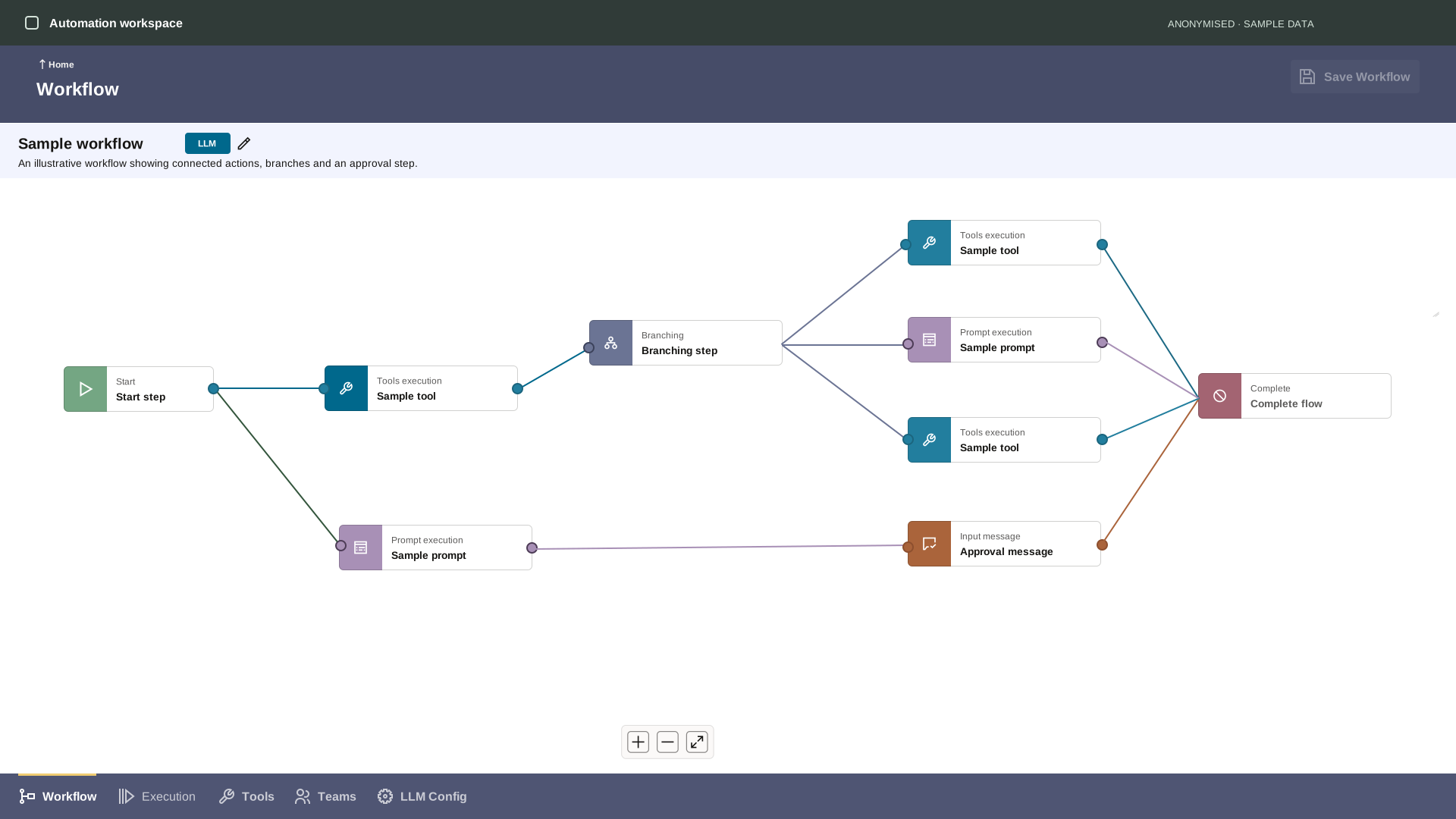
Anonymised workflow builder. A start step connects to tool and prompt paths, with branching, an approval message and a completion step.
Connected steps keep the workflow visible as a whole.View full screen ↗

Distinguish the actions

Labels, icons and colour help identify different types of work on the same canvas.

Keep approval in the flow

The input-message step gives approval a place alongside the automated actions.
Configure the agent

Give each step its working context.

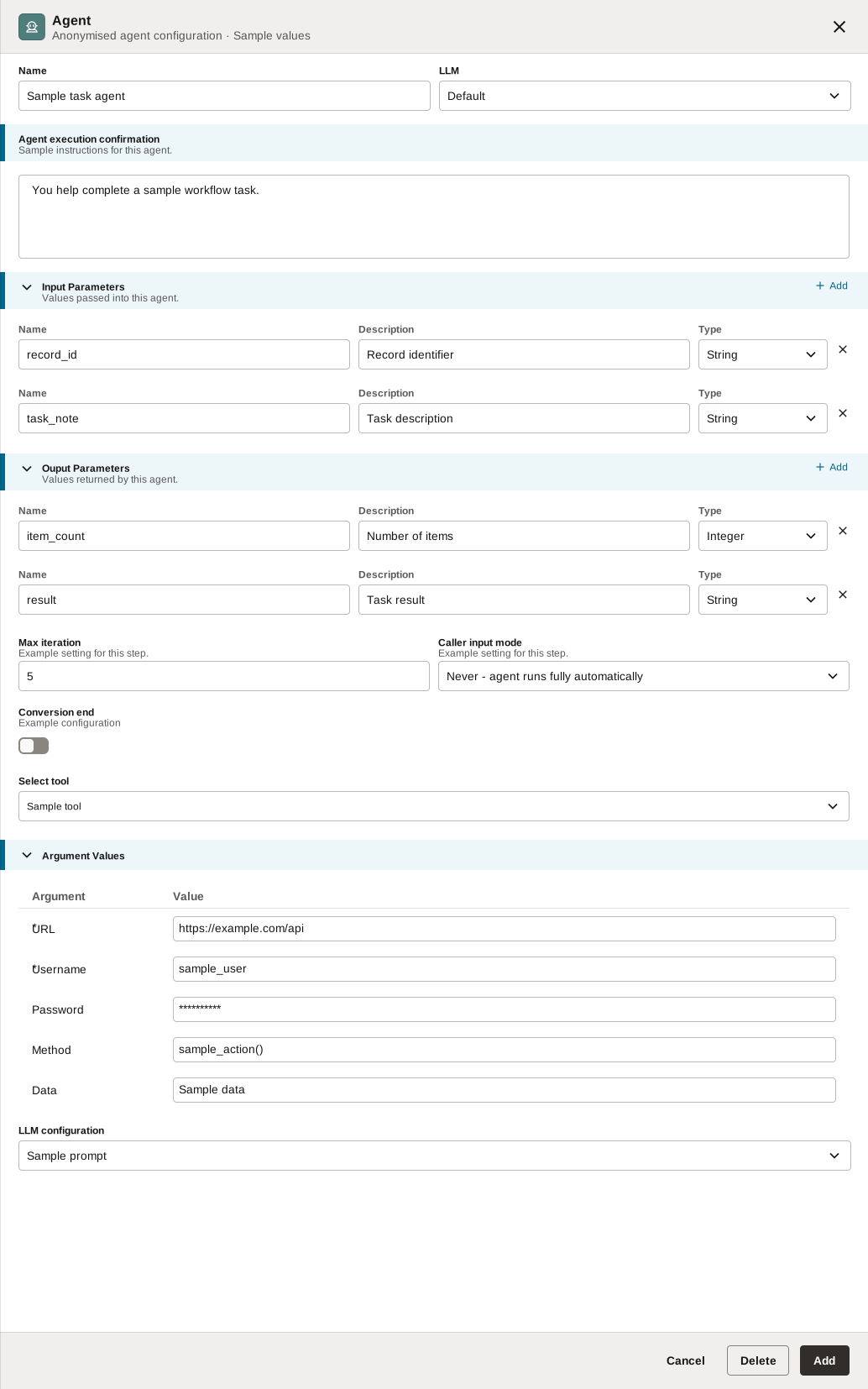
The agent drawer brings instructions, inputs, outputs, tools and execution settings into one configuration view. This connects a node on the canvas to the information it needs to perform its task.

Instructions

Define the task

An instruction area describes the work the agent should carry out.

Inputs & outputs

Make the data explicit

Named parameters, descriptions and types show what the step receives and returns.

Execution settings

Keep behaviour configurable

The drawer includes tool selection, argument values, iteration limits and caller input mode.

This screen shows the agent’s settings. The approval interaction is shown separately in the execution view below.

Agent configuration drawer with instructions, input and output parameters, tool settings and substituted sample values.
Agent configurationView full screen ↗

Approve during execution

Pause for a person’s decision.

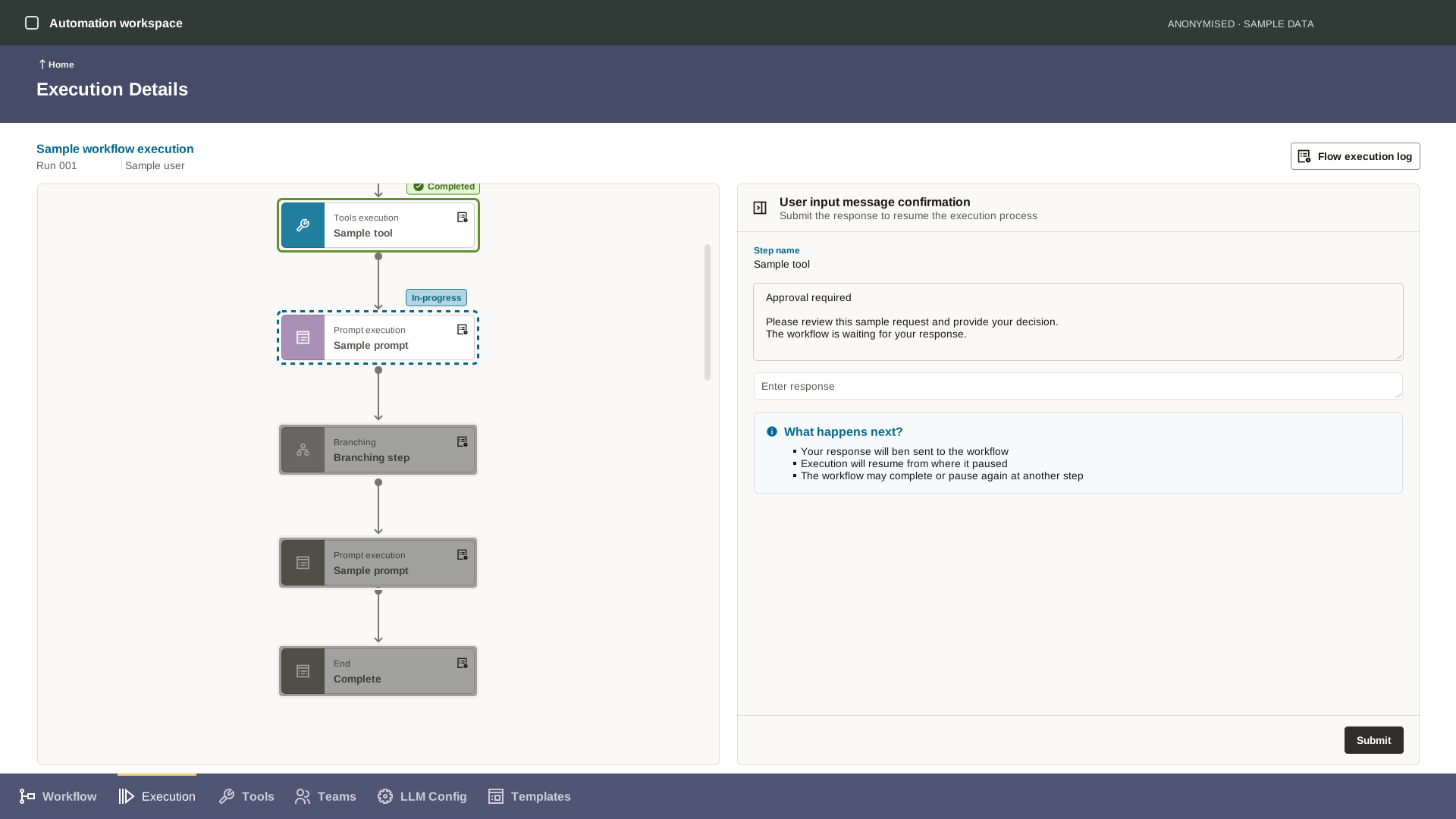
When a workflow requires approval, the run can pause and ask for a response. The execution view places the workflow’s progress beside the request, so the person can see the context of the decision.

Execution view with a step-by-step progress path on the left and a sample approval request, response field and next-step guidance on the right.
Execution context and the approval response share one view.View full screen ↗

Show the context

The progress path and step name locate the request within the running workflow.

Give a response point

The request, response field and Submit action sit together in the side panel.

Explain what follows

Guidance explains that the response returns to the workflow and execution resumes, with the possibility of another pause.

What to evaluate next

Can people build, understand
and approve with confidence?

The screens show the design work. Measured usability and time-saving results are not included in this case study.

Building a workflow

Ask someone to map a recurring task. Observe whether they can select the right steps and understand the connections.

Look for: completion, assistance and corrections.

Configuring an agent

Check whether someone can explain the inputs and outputs and configure a step with appropriate values.

Look for: field confusion and configuration errors.

Responding to approval

Check whether someone understands why the run paused, what they are approving and what submitting will do.

Look for: comprehension and decision time.
A detail to validate

The execution design uses an “In-progress” label while requesting a response. I would test whether a more explicit “Awaiting approval” state makes the next action clearer.

Explore more work

Connecting the
testing workflow.

Redesigning an enterprise regression-testing application around the people doing the work.

Read the testing case study

Let’s talk.

Reach out about UX roles, my work or a conversation with your team.

EmailSanjal.verma08@gmail.com
Phone+91 70422 84277